Mastering the Procreate Watercolor Set, Stamps, and Brushes for Digital Art
Digital illustration has evolved significantly, yet many artists still struggle to replicate the organic, unpredictable beauty of traditional media. This is where a specialized Procreate Watercolor Set, Stamps, and Brushes becomes an invaluable asset. Unlike standard digital tools that often feel sterile or overly uniform, this kit is designed to bridge the gap between tactile painting and tablet convenience. However, simply purchasing a brush set is not enough to guarantee professional results. Many creators overlook critical compatibility details, installation nuances, and workflow adjustments that can make or break their experience.
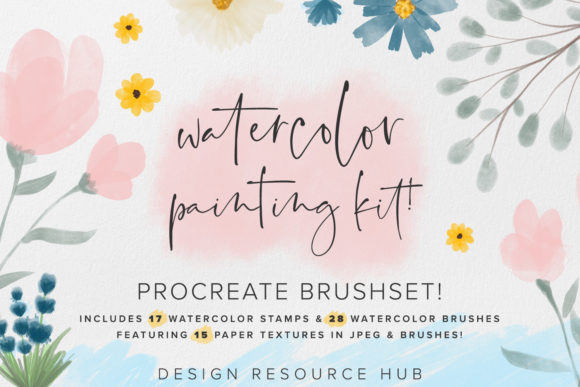
Understanding the specific architecture of these tools is essential. The kit in question includes 17 watercolor stamps, 28 various watercolor brushes, and 15 paper textures in JPEG format. These are not generic assets; they are handmade and engineered specifically for the Procreate app on iPad. A common misconception is that high-quality brushes are universally compatible across all design software. It is crucial to note that these brushes and stamps are not suitable for Adobe Photoshop or any other application. Attempting to force them into unsupported platforms will result in frustration and wasted time. They rely on Procreate’s specific rendering engine to achieve their signature bleed, granulation, and edge effects.
The Critical Role of Hardware Compatibility
One of the most frequent mistakes users make is underestimating the hardware requirements for optimal performance. The brushes in this set are created with Apple Pencil pressure in mind. While you might be able to tap out a shape with your finger, you will miss the nuanced dynamics that define watercolor painting. Without an Apple Pencil, you cannot access the full value of the brushes. The pressure sensitivity allows for variable opacity and flow, mimicking how real pigment reacts to the weight of a hand.
If you are using an older stylus or a third-party alternative that lacks precise pressure data, your artwork may appear flat or inconsistent. For beginners, this can be discouraging, leading them to believe the brushes are faulty when the issue lies in the input method. To avoid this, ensure your iPad and Apple Pencil are paired correctly and calibrated within Procreate settings before you begin. A basic knowledge of Procreate is recommended, but not required; however, familiarity with brush settings like streamline and pressure curves will significantly enhance your output.
Avoiding Installation Errors
Technical hurdles often arise during the initial setup. Many users download the file and expect it to automatically appear in their library, which is rarely the case. There are a couple of options for importing your new brush set post-purchase, and choosing the wrong method can lead to corrupted files or lost assets. You can use a cloud storage setup, like Dropbox or Google Drive, or you can AirDrop files directly to your iPad.
If you have cloud storage, you can open the brush set file in your Dropbox or Google Drive, click “export” or “open in,” and select Procreate. The brushes and stamps should import directly into your brushes library in their own new folder. If you skip the "Open In" step and try to save the file locally without associating it with Procreate, the app may not recognize the file type. Similarly, if you have a Mac, using AirDrop is often the fastest and most reliable method. Simply send the .brushset file from your Mac to your iPad, and tap the notification to open it immediately in Procreate. This direct transfer minimizes the risk of file format errors that can occur when zipping and unzipping files across different operating systems.
Maximizing the Potential of Stamps and Textures
Another overlooked aspect of this kit is the integration of stamps and textures. The 17 watercolor stamps are not just decorative clipart; they are functional building blocks for complex compositions. Users often treat stamps as static images, placing them without adjustment. However, because they are designed for Procreate, you can manipulate their color, opacity, and blending modes just like any brush stroke. This allows for seamless integration into your artwork rather than having elements look "pasted on."
The inclusion of 15 paper textures in JPEG format is also a game-changer for realism. A common error is ignoring these textures or applying them incorrectly. To get the best result, import these JPEGs as layers above your painting and experiment with blending modes such as "Multiply" or "Overlay." This adds the subtle grain and tooth of real watercolor paper, which helps bind the digital strokes together visually. Without this step, even the best brushes can look too clean and digital. By layering texture, you introduce the imperfections that the human eye associates with authentic art.
Practical Applications for Professionals and Hobbyists
This toolkit is versatile, serving a wide range of creative needs. These brushes and stamps are great for creating custom artwork on Procreate, posters, branding items, logo designs, and more. For entrepreneurs and small business owners, the ability to create unique, hand-painted logos without hiring an illustrator can save significant costs. Marketers and bloggers can use the stamps to create engaging social media graphics that stand out in a feed saturated with stock photography.
Educators and freelancers will find the efficiency of the stamps particularly useful for rapid prototyping. Instead of painting every leaf or splash from scratch, you can use the stamps as a base and refine them with the 28 various watercolor brushes. This hybrid approach speeds up workflow while maintaining a handmade aesthetic. However, remember that these tools require a shift in mindset. You are not just drawing; you are simulating a physical process. Patience and layering are key. Rushing the process by trying to achieve full opacity in one stroke will defeat the purpose of the watercolor effect.
Making an Informed Decision
Before purchasing or downloading any digital art asset, it is vital to check your device compatibility and software version. Ensure your iPad supports the latest version of Procreate to take advantage of all brush engine features. Verify that you have an Apple Pencil or a comparable pressure-sensitive stylus. If you are primarily a Photoshop user, this set will not serve your needs, and you should look for alternatives designed for that ecosystem.
By understanding the specific constraints and capabilities of this Procreate Watercolor Set, Stamps, and Brushes, you can avoid common pitfalls and elevate your digital art. The combination of handmade brushes, versatile stamps, and realistic textures offers a powerful solution for anyone looking to bring the warmth of watercolor to the digital canvas. With the right setup and a willingness to learn the nuances of pressure sensitivity and layering, you can create stunning, professional-grade work that resonates with audiences across various industries.